Box Storage Setup Guide
This guide walks you through connecting Box as your cloud storage provider in CloseCore. Once connected, CloseCore syncs your documents and folders directly with Box.
Connecting Box
1. Open storage settings
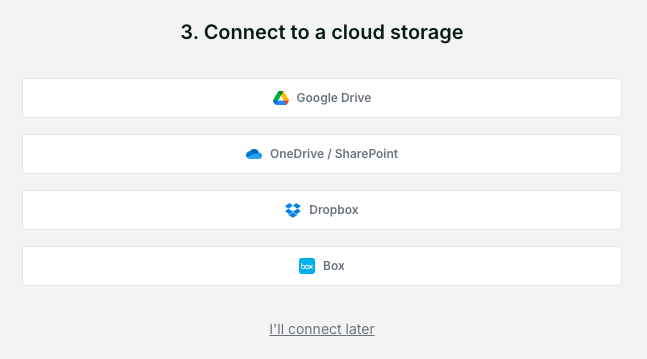
In CloseCore, navigate to your organization storage settings. Select Box as your storage provider and click Connect.
2. Authorize CloseCore
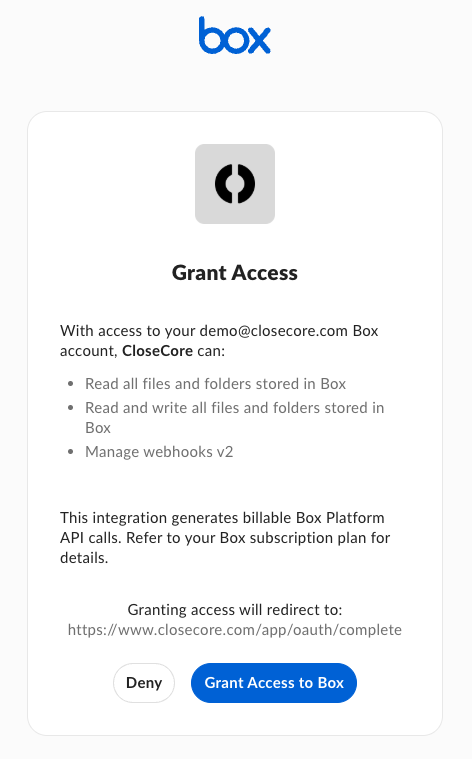
You will be redirected to Box to authorize CloseCore to access your account. Review the permissions requested and click Grant access to Box. After authorizing, you will be redirected back to CloseCore.
3. Set up your root folder
Choose the Box folder that CloseCore will use as the root for all synced documents. CloseCore will prompt you to select a root folder in Box.
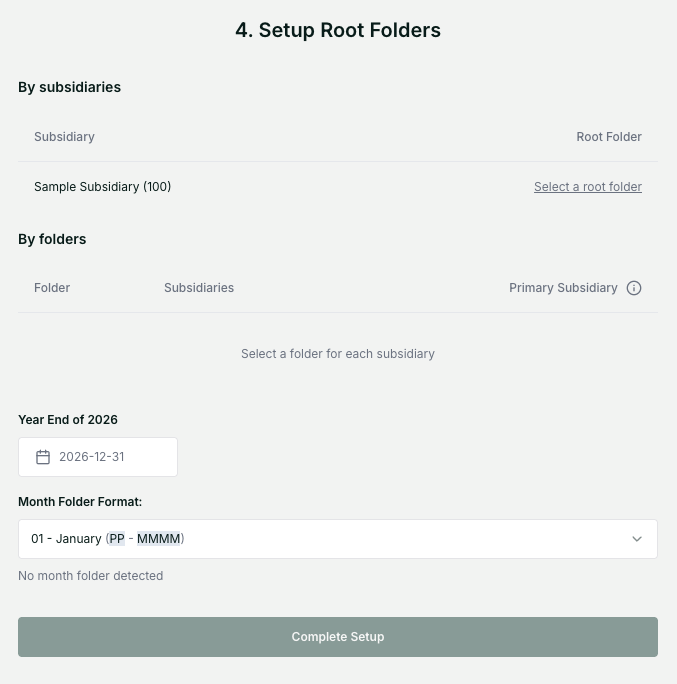
Click Select a root folder to open the folder picker.
4. Select a folder
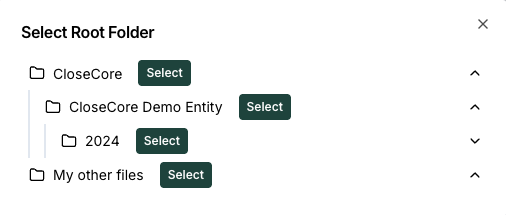
Browse your Box folders, select the folder you want CloseCore to use, and click Select.
5. Complete setup
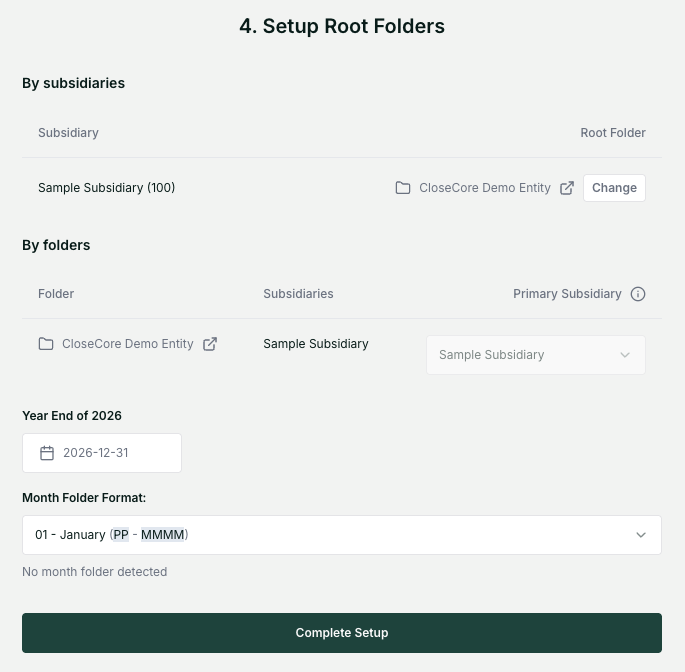
Click Complete Setup. CloseCore will now manage your monthly recurring folder structure.
Questions & support
If you have trouble connecting Box, email support@closecore.com or reach out through Slack or Teams.