CloseCore for Microsoft Teams
CloseCore for Microsoft Teams delivers month-end close notifications directly into Microsoft Teams for review notes, task assignments, status changes, sign-offs, reminders, and alerts. It also lets users sign off on tasks straight from a Teams card. The app requires a CloseCore account.
CloseCore sends selected notifications to each connected user's Teams chat, with enough context to understand what changed and actions or links to continue the work.
What the Teams app does
CloseCore sends Teams messages for selected accounting close events. Users choose which notification types go to Teams from their CloseCore Notifications page. Messages are delivered as Adaptive Cards in the CloseCore bot chat and don't require adding the bot to any channel.
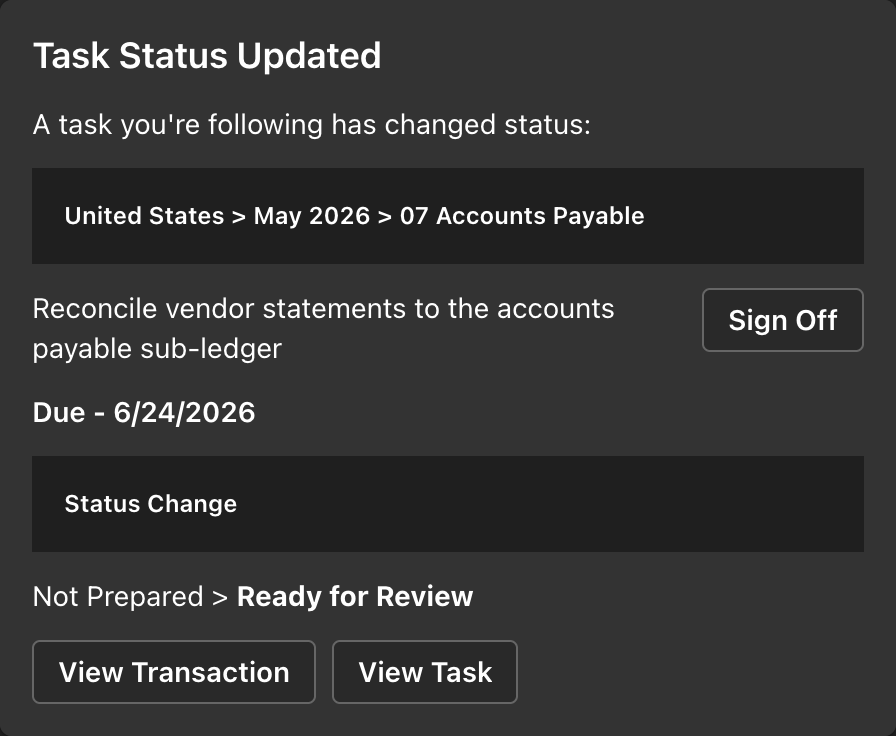
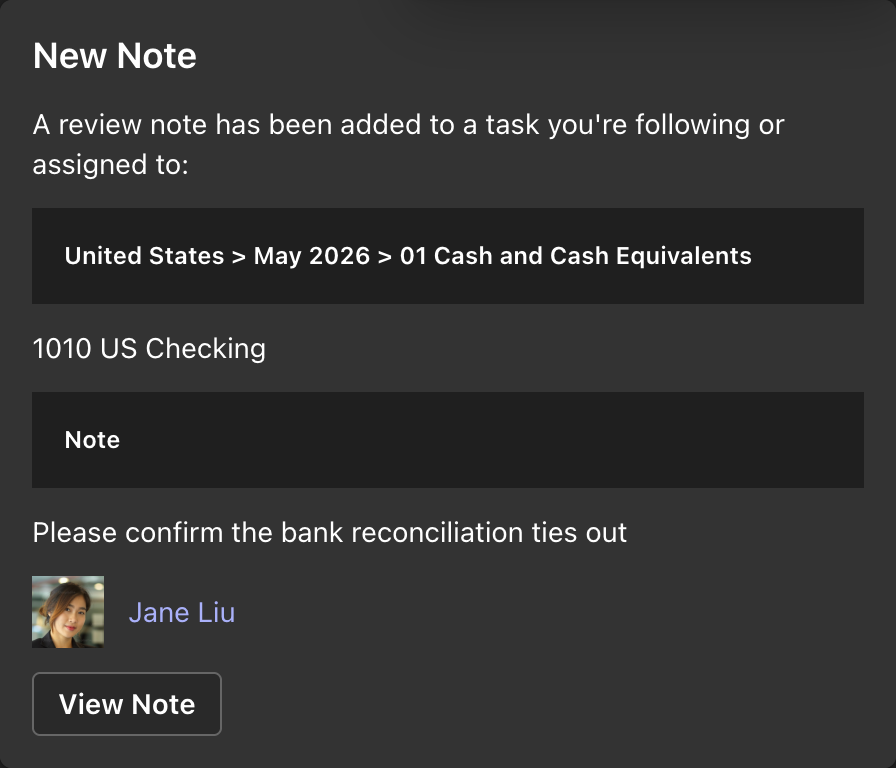
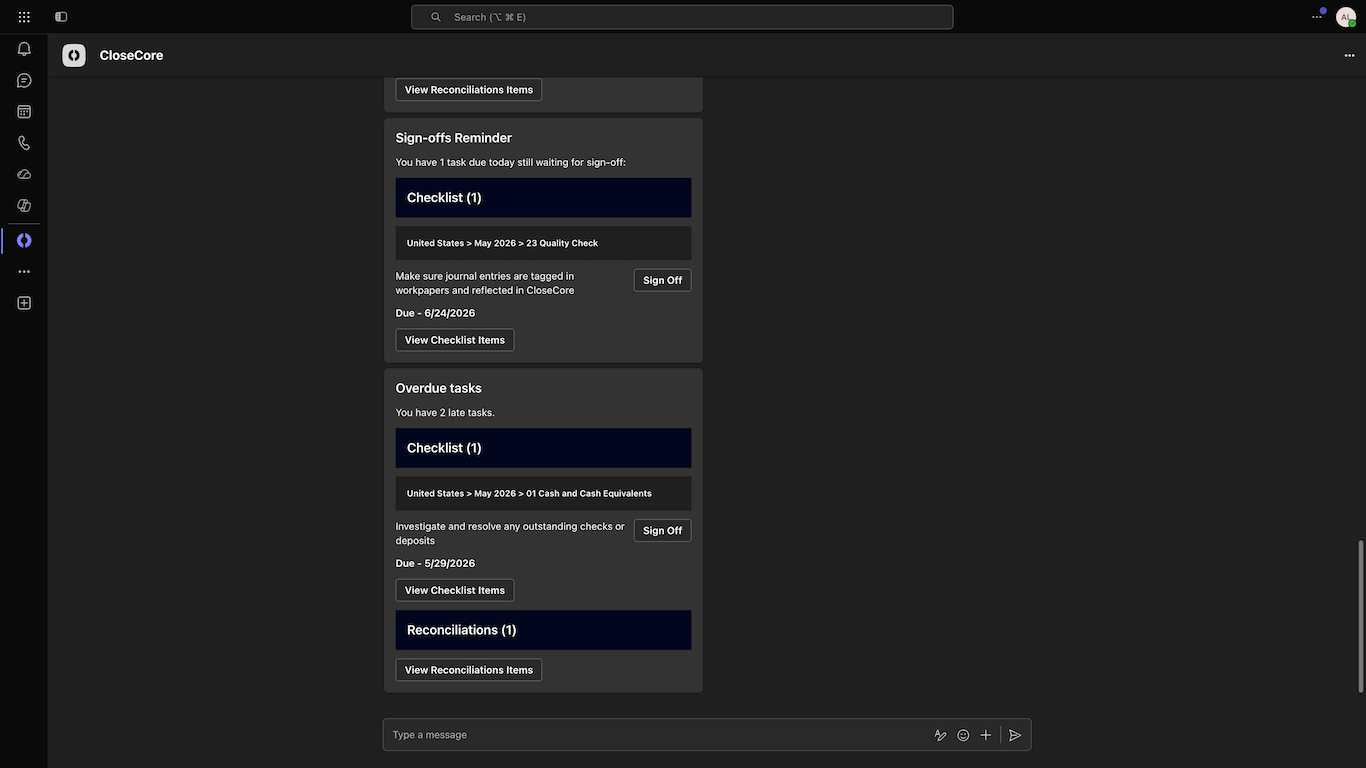
Teams cards can include task names, review note activity, reconciliation status, transaction alert context, close-progress summaries, sign-off actions, and links back to the relevant CloseCore workflow.
How CloseCore works in Teams
After connecting, Teams notifications appear from the CloseCore bot in your personal chat. Depending on the notification type, users can review task context, see due dates, sign off on tasks directly from the card, or follow a link to the related CloseCore record.
Install and connect Teams
Install CloseCore for Microsoft Teams from Microsoft Marketplace, then connect your Teams account to CloseCore.
-
Sign in to closecore.com with your CloseCore account.
-
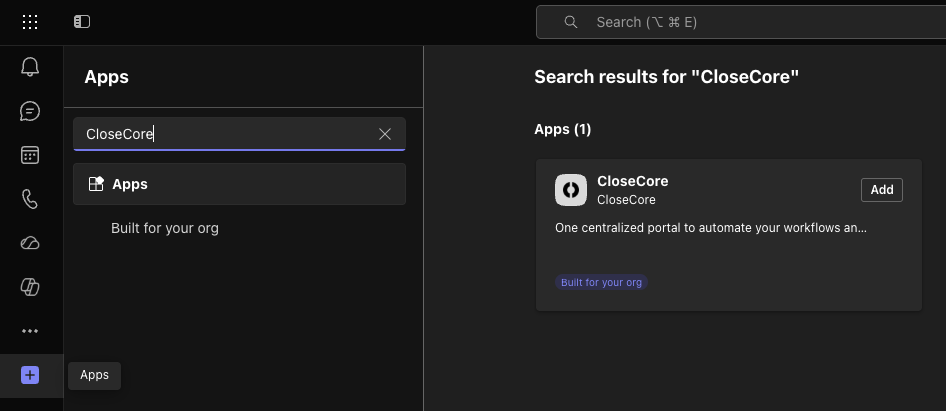
In Microsoft Teams, open Apps, search for CloseCore, and click Add.
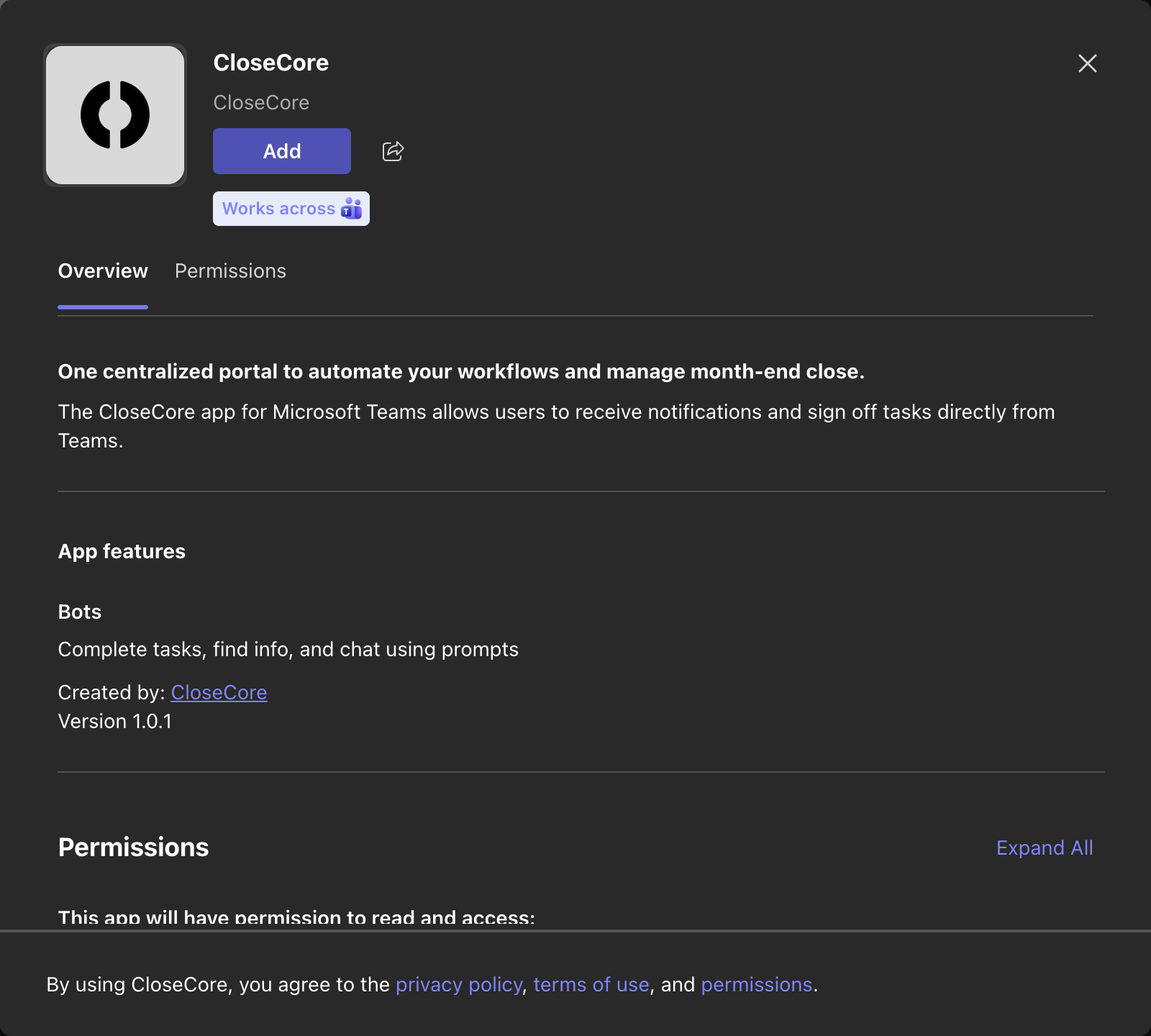
-
Click Open to open the CloseCore bot chat in Teams.
-
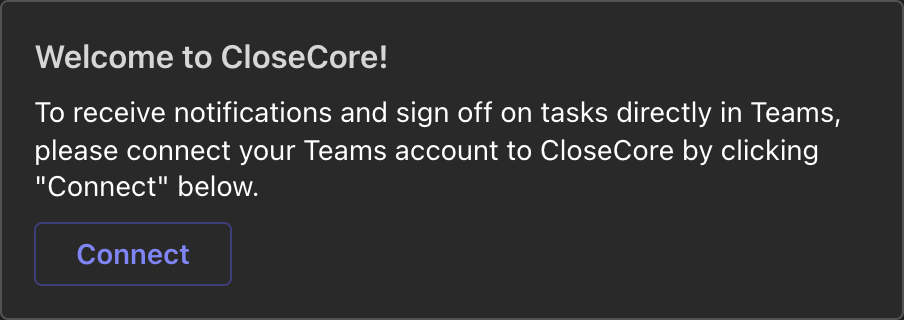
In the welcome message, click Connect. This opens closecore.com and links your Teams account to CloseCore.
-
After connecting, you'll see a confirmation in Teams that your account is linked.

-
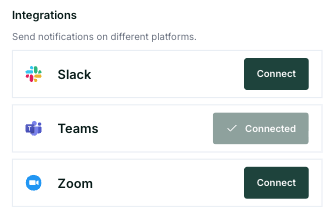
Back in CloseCore, go to Settings → Notifications. Under Integrations, confirm Teams shows Connected.
-
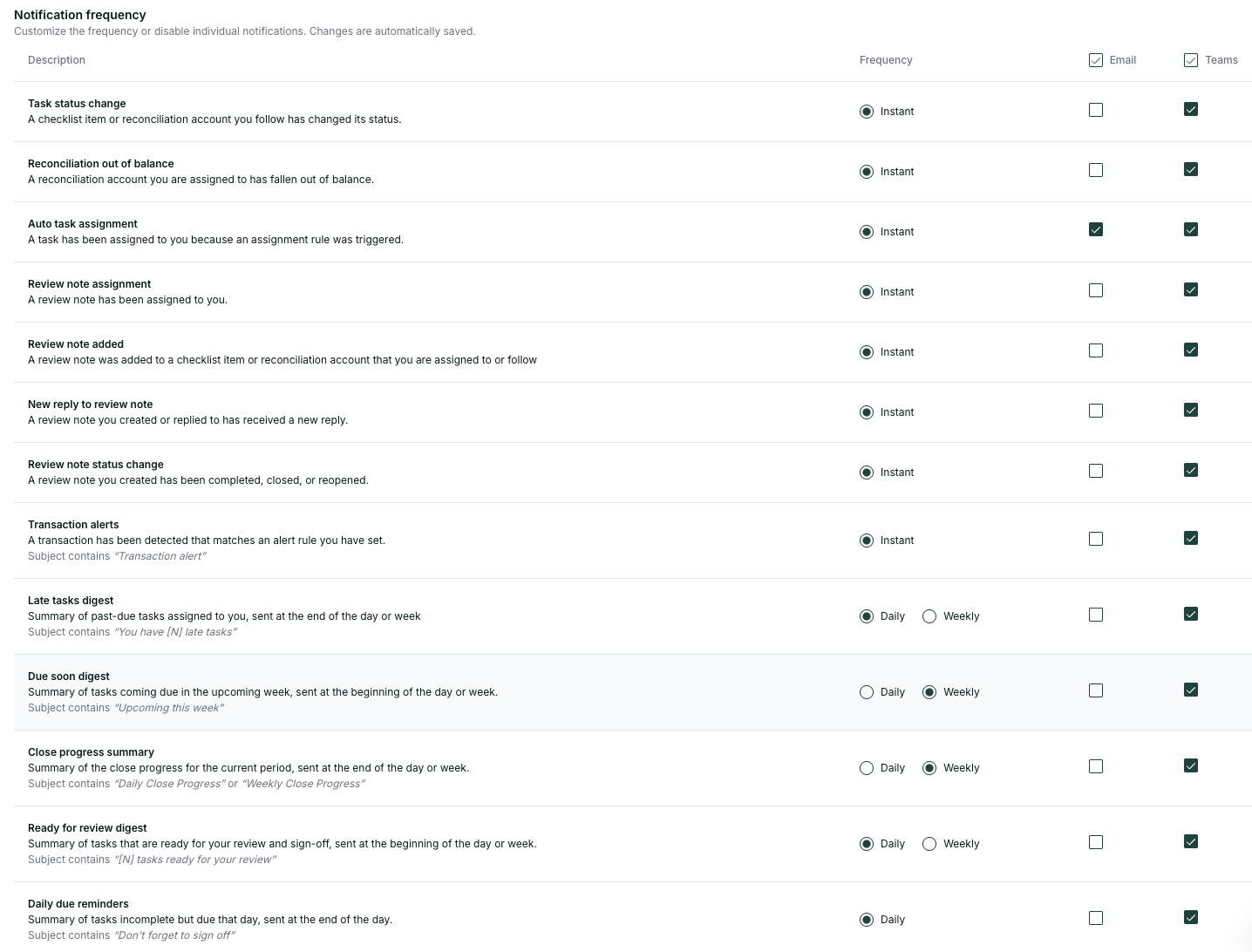
In the notification table, enable the Teams checkbox for each notification type you want delivered in Teams.
Teams notification triggers
- Task status change: a checklist item or reconciliation account you follow changes status.
- Reconciliation out of balance: a reconciliation account assigned to you falls out of balance.
- Auto task assignment: an assignment rule assigns a close task to you.
- Review note assignment: a review note is assigned to you.
- Review note added: a followed or assigned task receives a new review note.
- New reply to review note: a review note you created or replied to receives a reply.
- Review note status change: a note you created is completed, closed, or reopened.
- Transaction alerts: CloseCore detects a transaction that matches an alert rule you created.
- Late tasks digest: a daily or weekly summary of past-due tasks assigned to you.
- Due soon digest: a daily or weekly summary of tasks coming due soon.
- Close progress summary: a daily or weekly summary of current-period checklist and reconciliation progress.
- Ready for review digest: a daily or weekly summary of tasks ready for your review and sign-off.
- Daily due reminders: a daily reminder for incomplete tasks due that day.
- Task dependency unblocked: a task becomes ready to work on after its dependency is completed.
Disconnect from Teams
Go to your notification settings. Under Integrations, hover over Teams, click the disconnect icon, and confirm Disconnect in the popup.
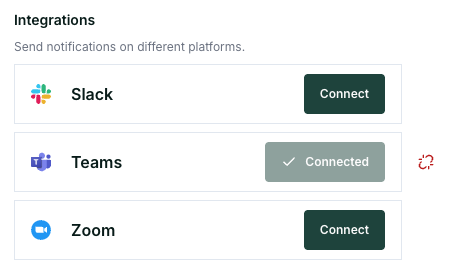
After disconnecting, CloseCore no longer sends Teams notifications for that user. You can also uninstall the CloseCore app from Teams by right-clicking it in your app list and selecting Uninstall.
Data and privacy
When a user connects Teams, CloseCore stores the Teams conversation reference and service URL needed to send that user's selected messages. See our Privacy Policy.
Support
For help installing, configuring, or using CloseCore for Microsoft Teams, email support@closecore.com, or use the chat bubble in the bottom-right corner of the CloseCore website. CloseCore support responds to Teams app support requests within one business day.