CloseCore for Zoom
Connecting your CloseCore account to Zoom
Install CloseCore for Zoom from the Zoom App Marketplace, then connect your Zoom account to CloseCore.
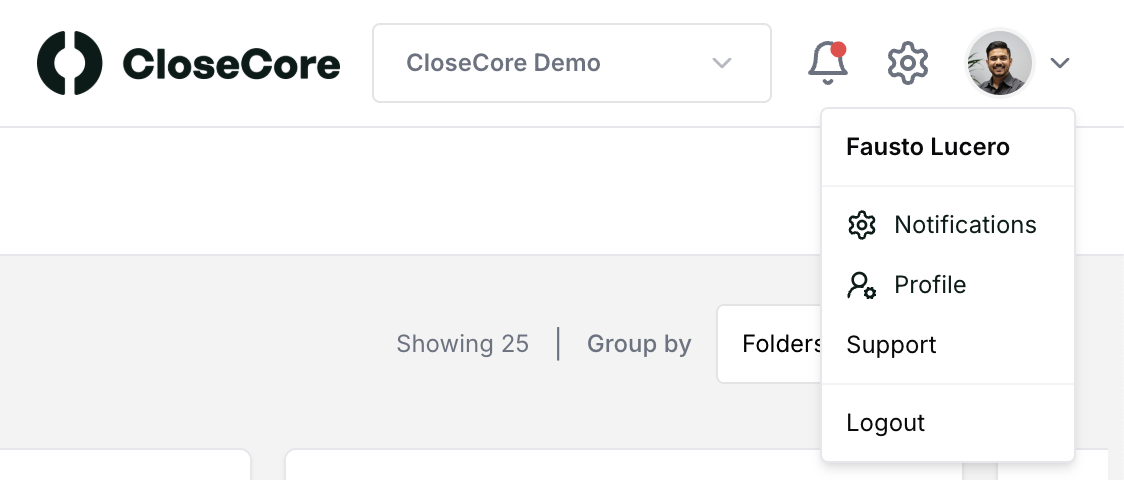
Once signed in on closecore.com, click the user menu at the top right and click Notifications.
You should now be at your notification settings. Under Integrations, click Connect next to Zoom.
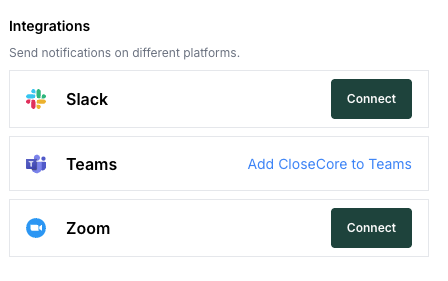
Sign in with Zoom and authorize the CloseCore application. Keep your Zoom window open. Finally, on the Notifications page, enable the checkbox for the notification types you want under the Zoom column.
Types of notifications
The Notifications page contains settings for all of CloseCore's supported notifications.
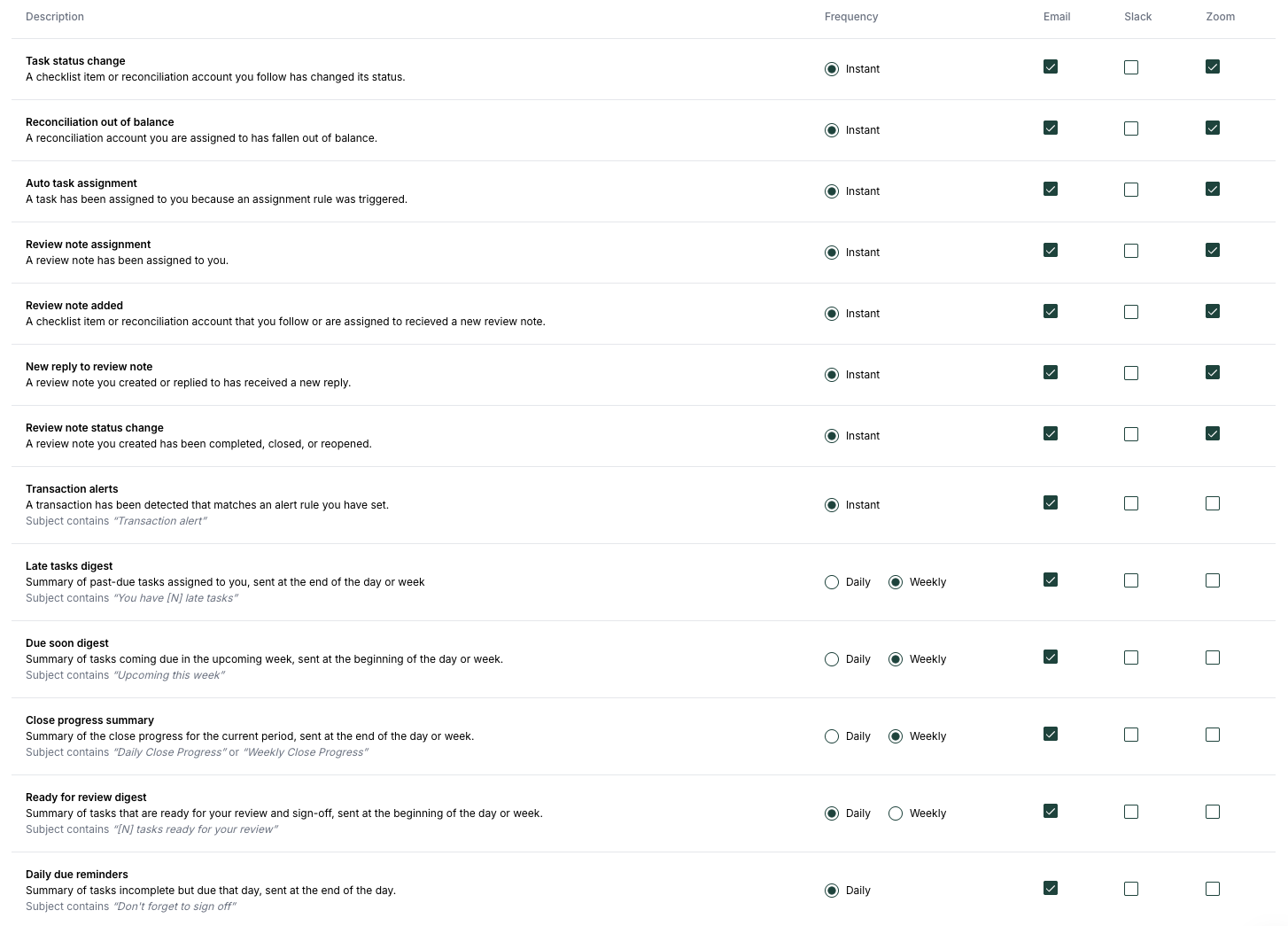
- Task status change: a checklist item or reconciliation account you follow has changed status.
- Reconciliation out of balance: a reconciliation account you're assigned to has fallen out of balance.
- Auto task assignment: a task has been assigned to you because an assignment rule was triggered.
- Review note assignment: a review note has been assigned to you.
- Review note added: a checklist item or reconciliation account you follow or are assigned to received a new review note.
- New reply to review note: a review note you created or replied to has received a new reply.
- Review note status change: a review note you created has been completed, closed, or reopened.
- Transaction alerts: a transaction has been detected that matches an alert rule you set.
- Late tasks digest: a summary of past-due tasks assigned to you, sent at the end of the day or week.
- Due soon digest: a summary of tasks coming due in the upcoming week, sent at the beginning of the day or week.
- Close progress summary: a summary of the close progress for the current period, sent at the end of the day or week.
- Ready for review digest: a summary of tasks ready for your review and sign-off, sent at the beginning of the day or week.
Disconnect from Zoom
Go to your notification settings. Under Integrations, hover over the Zoom section; a disconnect button appears on the right. Click it, then click Disconnect in the popup.

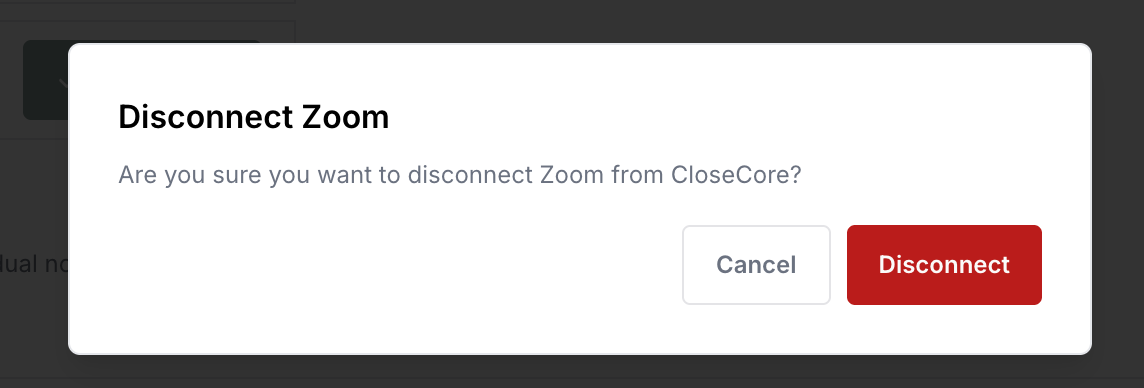
After disconnecting, CloseCore loses access to your Zoom account and will no longer send notifications through Zoom.
Questions & support
For questions or live support, email support@closecore.com.