NetSuite RESTlet Installation Guide
This guide walks you through installing and updating the CloseCore RESTlet script in NetSuite. Once deployed, you can use Saved Searches and SuiteAnalytics Datasets as data sources in CloseCore's AutoExport feature.
Installation
1. Upload the script file
Ensure you are logged in with a role that allows you to install scripts.
-
Go to Customization → Scripting → Scripts → New.
-
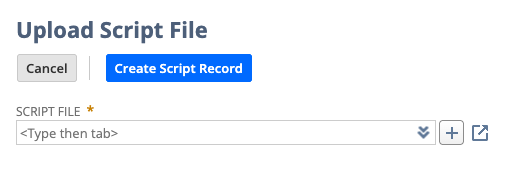
Hover over the Script File dropdown and click the + icon.
-
Upload the script file and give it a name that ends in
.js. The file name must end in.js.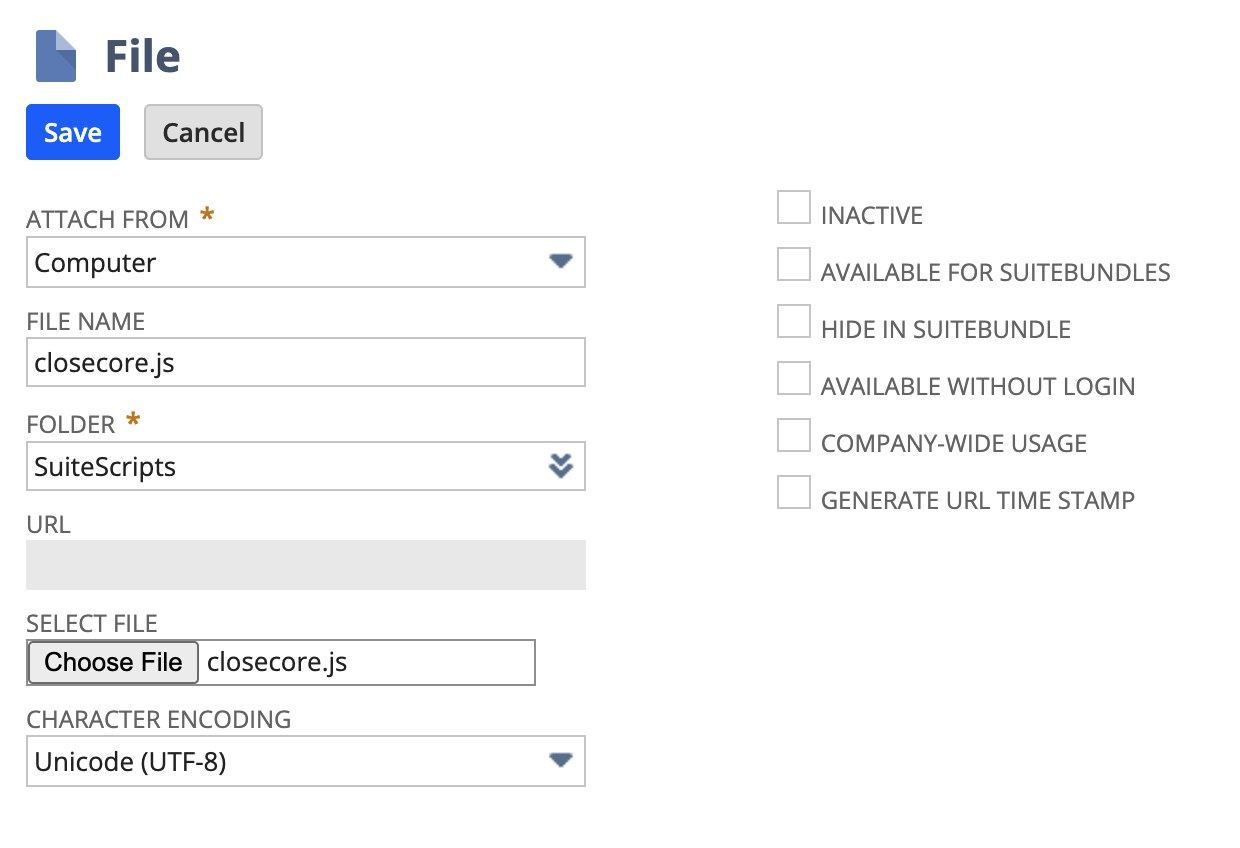
-
Click Save.
-
Click Create Script Record.
2. Create the script record
-
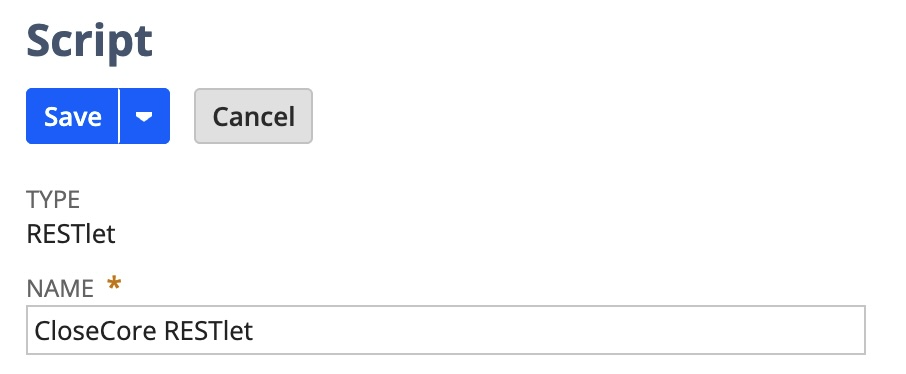
Give the script a Name such as "CloseCore RESTlet."
-
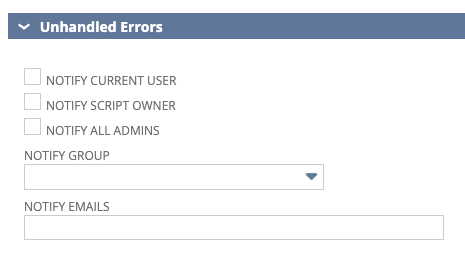
Under Unhandled Errors, you can deselect the notification checkbox.
-
Click Save. You'll be redirected to the Script page.
3. Create a script deployment
-
Click Deploy Script.

-
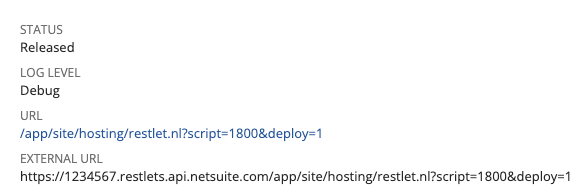
Set the Status to Released and the Log Level to Audit. Use Debug only temporarily when troubleshooting, then restore Audit.
The screenshot below shows Debug; select Audit for normal use.

-
Under Audience, select the role you already use with CloseCore.
-
Click Save. You'll be redirected to the Script Deployment page.
4. Last step
Copy the External URL and paste it into the RESTlet URL field in CloseCore's ERP Connection settings. It should look like:
https://ACCOUNT.restlets.api.netsuite.com/app/site/hosting/restlet.nl?script=SCRIPT&deploy=1
Updating the RESTlet
CloseCore occasionally makes updates to the RESTlet script. We'll notify you when a new version is ready to install.
-
Go to Customization → Scripting → Scripts and find the CloseCore script.
-
Click the link to the
.jsfile under the Script column. -
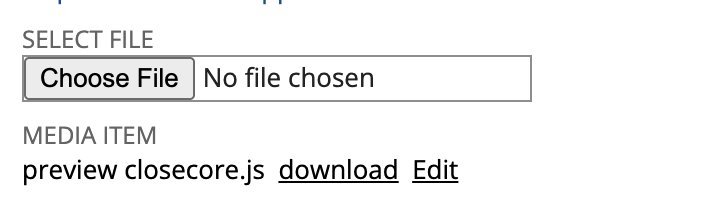
Click Edit to open the file for editing.

-
Under Select File, upload the new script file.
-
Click Save.

You do not need to redeploy the script after updating.
Questions & support
If you have trouble installing the RESTlet script, we're happy to help guide you through it live. Email support@closecore.com or reach out through Slack or Teams.